
Scene revision history for screenwriters
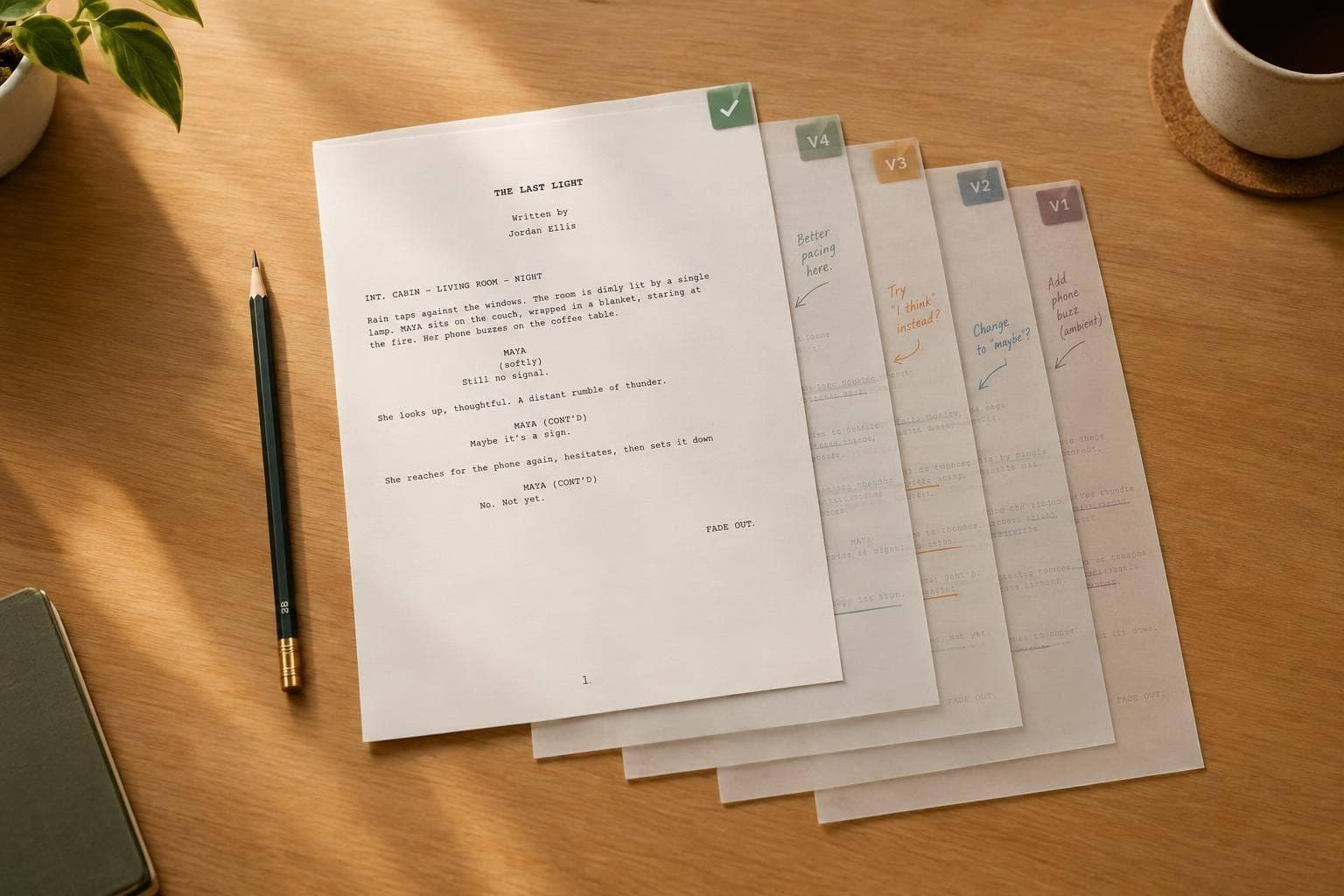
Scene revision history for screenwriters
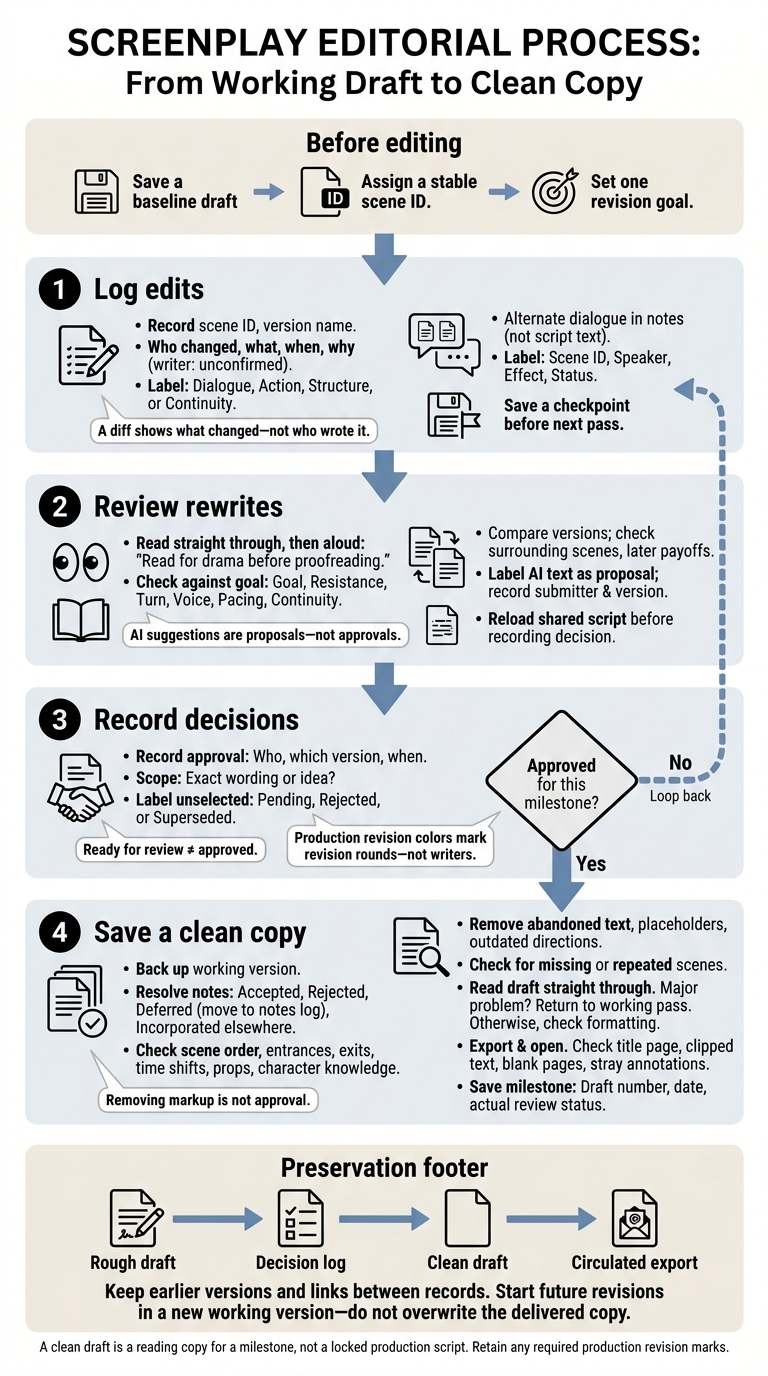
I track scene revisions by saving a starting draft and recording what changed, who changed it, when, and why. Before editing, I give each scene a stable ID and set one revision goal.
My process covers four steps:
- Log edits: Record scene versions, dialogue options, contributors, and reasons for changes.
- Review rewrites: Compare versions, check nearby scenes, and treat AI suggestions as proposals - not approvals.
- Record decisions: Note who approved which version. A text comparison shows changes, not proof of authorship.
- Save a clean copy: Resolve notes, check the exported file, and keep the working draft and revision log.
I keep <u>“ready for review” separate from “approved”</u>. And I track production revision colors separately: they mark revision rounds, not writers.
Scene Revision History: From Working Draft to Clean Copy
Track Dialogue and Scene Edits
Record Edits and Identify Who Changed Dialogue
Start with the baseline draft and scene log. Open the latest named version, then note its scene identifier and version name before editing. Work through the scene in one pass, log the revision, and save a checkpoint before starting the next pass.
Use manual notes to record intent. Rely on automatic history only for metadata it records. In Scriptwood, verify that metadata and use version comparison, restoration, and inline comments without assuming they identify who wrote each line.
To check who changed dialogue, compare collaborator history, author notes, and the revision log for that saved version. A diff shows what changed - not who wrote it. Shared accounts, pasted text, and imported drafts can blur attribution. Mark the writer as unconfirmed until documented. Production revision colors identify revision rounds, not writers.
Save Alternate Lines and Label Edit Types
Store alternate dialogue in notes or saved versions, not in the script text. Label each option with the scene ID, speaker, intended effect, and status. Before choosing a line, compare intent, subtext, character voice, length, rhythm, and continuity.
| Change Type | What to Log | Review Question |
|---|---|---|
| Dialogue | Speaker, original and revised purpose, subtext, voice, approximate length, and note addressed | Does the new line sound like the character and achieve the intended dramatic effect? |
| Action | Changed behavior, visual detail, prop, movement, or effect on production | Can the audience understand the action on screen without unnecessary explanation? |
| Structure | Scene order, beat placement, entrance or exit, deleted material, or altered turning point | Does the revision improve pacing, cause-and-effect, and escalation? |
| Continuity | Changed time, location, wardrobe, prop, injury, relationship fact, or information known by a character | Does the scene agree with earlier and later scenes? |
Record approval as a manual decision. Unless documented controls support a formal review process, note who approved which version, when, and whether approval covers the exact wording or just the idea. A saved version is not approval. Mark unselected lines as pending, rejected, or superseded for review.
sbb-itb-609c31f
Review Scene Rewrites Before Approval
Read the Scene and Compare Versions
After logging the rewrite, read the scene as a reader would before approving it. Read for drama before proofreading. Read it straight through, then aloud. Check its goal, resistance, turn, voice, pacing, and continuity against the logged reason for the revision.
Compare saved versions. Does a cut remove a setup? Does a new line reveal information too soon? Does a changed action weaken the scene’s turn?
Read the surrounding scenes and any later scenes that depend on the rewrite. Follow changes to story facts, character knowledge, props, and timing through to their payoffs. Reject any rewrite that creates conflicts in those details later in the story.
Review AI Rewrites and Team Notes in Scriptwood
Use Scriptwood’s AI rewrites, draft comparison, draft history, and inline comments to review the scene before approval.
After comparing the scenes, label AI text as a proposal. Record who submitted it and which version it belongs to. Have the writer or team check proposals and comments against the revision goal and the criteria above. Treat AI coverage as review input - not approval.
Before approval, reload the shared script so everyone sees the latest edits. Then record the decision against that version.
Turn the Rough Draft Into a Clean Draft
Once the rewrite is approved, move the working scene into a clean draft. The rough draft is your working screenplay, complete with open notes and experiments. The clean draft is the approved reading copy for this milestone, with no markup. It’s not a locked production script. Keep earlier versions so you can trace each scene’s revisions.
Resolve Notes and Save the Clean Draft
Back up the working version before accepting or deleting anything. Mark every open note as accepted, rejected, deferred, or incorporated elsewhere. Fix story and structure before polishing dialogue, and move deferred items to a separate notes log.
Next, check scene order, entrances, exits, time shifts, props, and what each character knows. Write a one-line reverse outline for each scene to help spot problems with order and continuity.
Remove abandoned dialogue, duplicate passages, temporary placeholders, and outdated directions. Check the scene list for missing or repeated scenes.
With the notes resolved, read the clean draft straight through as a reader would - before making line edits. If a major story problem remains, move the draft back into a working pass. Otherwise, check scene headings, character cues, dialogue blocks, and page breaks.
Export the reading copy, then open the exported file, rather than relying on the editor preview. Check the title page for errors, and look for clipped text, blank pages, stray annotations, and revision marks throughout the file.
Once the reading copy is clean, save it as the version you’ll share. Keep the clean draft as a separate milestone with a clear draft number, date, and review status. Name it:
Second Draft - November 2, 2026 - Ready for Review.
Retain the rough draft, decision log, clean draft, and circulated export. Keep the clean draft linked to the rough draft and decision log. Make future revisions in a new working version instead of overwriting the delivered copy.
Conclusion: Keep the Clean Draft and Its History
Remove markup without losing the scene’s history. Keep earlier versions, reasons for edits, and approval records intact. Separate the working draft from the reading copy using these criteria:
| Criterion | Rough draft | Clean draft |
|---|---|---|
| Visible change marks | May include revision marks, highlights, margin indicators, or tracked edits | Working marks are removed unless formal production revision pages are required |
| Unresolved comments | May include open notes, questions, and alternate lines | Comments are resolved, accepted, rejected, or deliberately carried forward |
| Readability | Built for revision and discussion | Reads as one coherent screenplay |
| Review state | Working decisions remain open | Approved for its stated purpose or clearly marked for review |
| Appropriate use | Scene comparisons, rewrite planning, and issue tracking | Circulation, table reads, and production preparation |
Removing markup is not approval. Keep “ready for review” separate from “approved,” preserve the version history, and retain any required production revision marks.
Keep scene IDs consistent, credit major edits, and record why each change was made. Saved versions should show how the scene moved from rough draft to clean draft.
FAQs
How should I track scenes that split or merge?
Keep scene names consistent. Record every split or merge in your plain-text change log, along with the reason for the change.
In Scriptwood, label milestones in Draft History with names like “Post-Merge_Draft.” Use Draft Comparison to review insertions, cuts, and moves, checking story flow, continuity, and pacing. If a change doesn’t work, restore an earlier draft from version history and try another approach without losing your work.
How do I resolve conflicting dialogue edits?
Use Draft Comparison to spot changes, then review both versions side by side with your co-writer. Pick the dialogue that best fits the character’s voice and the scene’s pacing.
Stuck on a choice? Ask Scriptwood’s AI Consultant for an outside perspective on the scene or character motivations. You can also save both versions and step away for a day. When you return, use Draft History to restore your preferred version without losing either collaborator’s original work.
What if an approved scene needs another rewrite?
Scriptwood’s version history lets you test a rewrite without changing the approved version. Every save creates a named draft, so you can try new directions or dialogue changes and restore an earlier version if needed.
Use the Draft Comparison tool to review changes side by side. Check that your edits address the needed fixes while keeping your master draft intact.