
How to Manage Multiple Screenplay Drafts Without Losing Work
How to Manage Multiple Screenplay Drafts Without Losing Work
If I want to stop losing screenplay pages, I need one system for naming, storing, backing up, and exporting every draft. Most draft problems come from simple mistakes: overwriting files, mixing up exports with working files, or saving scripts in too many places.
Here’s the short version:
- Use one filename pattern from day one
- Separate working passes from approved drafts
- Keep drafts, notes, exports, and archives in fixed folders
- Save 3 copies of each script: computer, external drive, and cloud
- Use app history tools to compare versions and restore old pages
- Keep a short change log with dates and draft notes
- Set team rules so only the right people can edit the master file
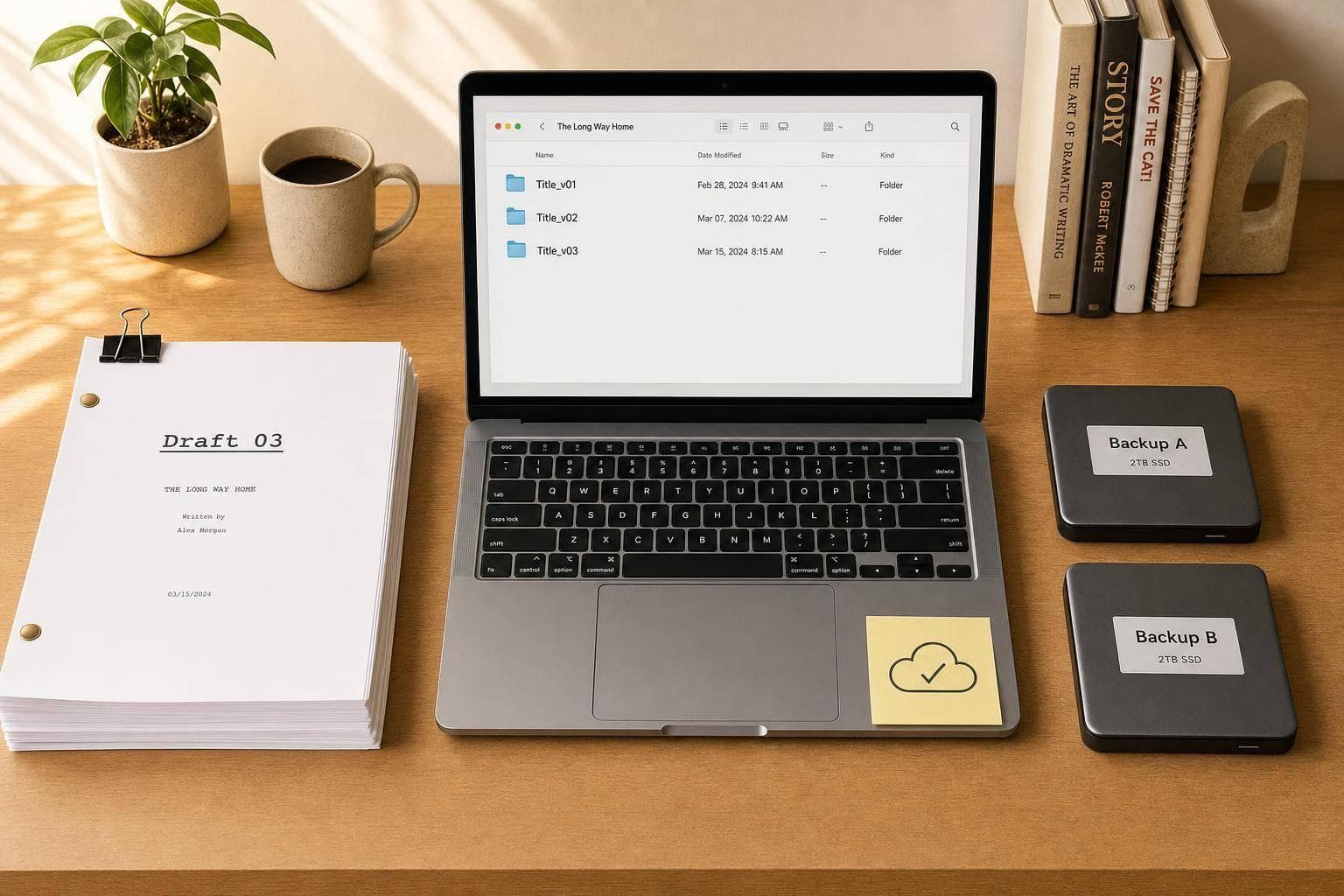
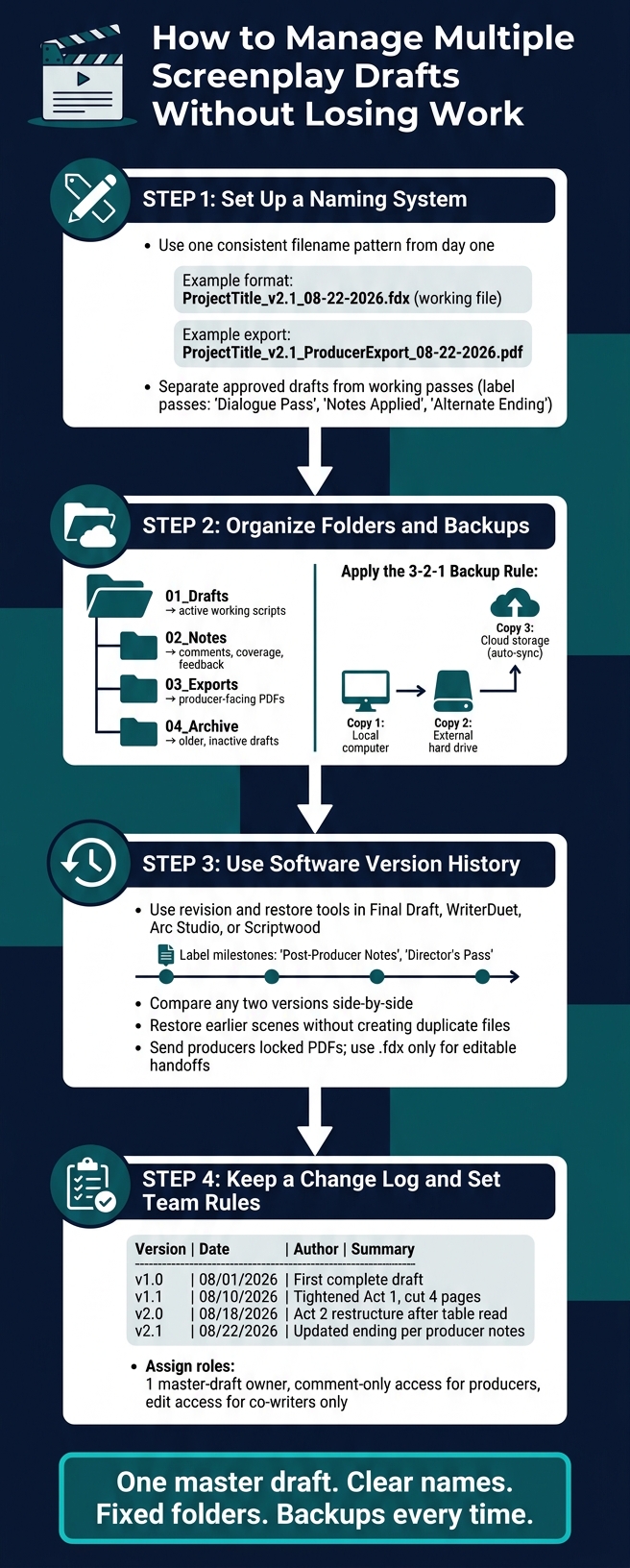
A simple system like this cuts confusion fast. For example, if I save ProjectTitle_v2.1_08-22-2026.fdx and export ProjectTitle_v2.1_ProducerExport_08-22-2026.pdf, I can tell at a glance which file is the live script and which one was sent out.
The main idea is simple: one master draft, clear names, fixed folders, and backups every time. That gives me a safe way to test changes, roll back bad edits, and find older scenes without digging through random files.
Screenplay Draft Management System: A Step-by-Step Guide
Set Up One Clear Version System From Day One
Choose one naming system before you write your first page, then stick with it every time you save.
Use a Consistent File Naming Format
Use the same filename pattern on every save so you can spot the current draft right away. Include the script title, script format, and the draft number or draft status. That simple habit makes it much easier to trace notes, exports, and rewrites back to the correct draft without second-guessing yourself. Your export names should match the master file too, so notes stay tied to the right draft.
If your writing software includes version history, each save can become a named draft. That gives you an easy way to scan older versions and go back to earlier work when you need to.
Separate Approved Drafts From Working Passes
Every saved file shouldn't count as an official draft. Mark revision passes in a clear way, using labels like Dialogue Pass, Notes Applied, or Alternate Ending, so no one confuses them with the approved draft. Keep test versions in a separate lane so collaborator edits and alternate scenes don't overwrite the approved file.
This gives you one master draft and a clear split between that file and your working passes. Once the naming system is in place, put every version into a folder and backup setup that lets you recover older drafts when needed.
With the naming side locked down, the next move is storing each draft in a folder and backup system that protects older versions.
sbb-itb-609c31f
Organize Drafts in Folders, Cloud Storage, and Backups
A file name helps. But on its own, it won’t save you when drafts start piling up.
Pair your naming system with a fixed folder setup so every script stays easy to find, even after a pile of rewrites.
Create a Folder Structure That Scales With Rewrites
Set up one root folder for all your screenwriting projects. Then use the same subfolders inside every project title.
A simple setup looks like this:
Screenwriting/Projects/[Title]/01_Drafts02_Notes03_Exports04_Archive
Put working drafts in 01_Drafts. Store notes, comments, and coverage in 02_Notes. Save exported PDFs in 03_Exports.
This part matters more than people think. Keep producer-facing PDFs in 03_Exports so they never overwrite your editable draft. Move older drafts into 04_Archive when they’re no longer active.
That split makes life easier. Your current draft stays front and center, while notes and exports stay out of the way.
Use Cloud Sync and the 3-2-1 Backup Rule
One storage location is not enough.
Keep three copies of every script:
- one on your computer
- one on an external drive
- one in cloud storage with auto-sync
That’s the 3-2-1 backup rule in plain English. If your laptop dies, a file gets corrupted, or you overwrite something by mistake, you still have a way back.
Archive Old Versions Instead of Deleting Them
When a draft is no longer active, move it to 04_Archive instead of deleting it.
Old drafts can still save you later. Maybe you need to bring back a cut scene. Maybe an earlier line of dialogue worked better. Maybe you need the pre-notes version because the latest pass went sideways.
Keep the original date in the filename so the timeline stays clear. Once those older drafts are stored safely, use revision tools to compare versions and pull scenes back fast.
Use Screenwriting Software to Track Changes and Restore Earlier Drafts
After your files are organized and backed up, move into version control inside the writing app. The goal is simple: recover changes without spinning up a pile of duplicate drafts.
Once your script files are named well and stored safely, your software's history and compare tools can help you roll back edits, check what changed, and pull back older material when you need it.
Use Revision Features in Final Draft, WriterDuet, and Arc Studio
Use revision, history, and restore tools to compare passes, review collaborator edits, and bring back cut scenes without making duplicate files. That makes it much easier to mark milestones and get back to the exact version you want.
Use Scriptwood Draft History and Comparison Tools
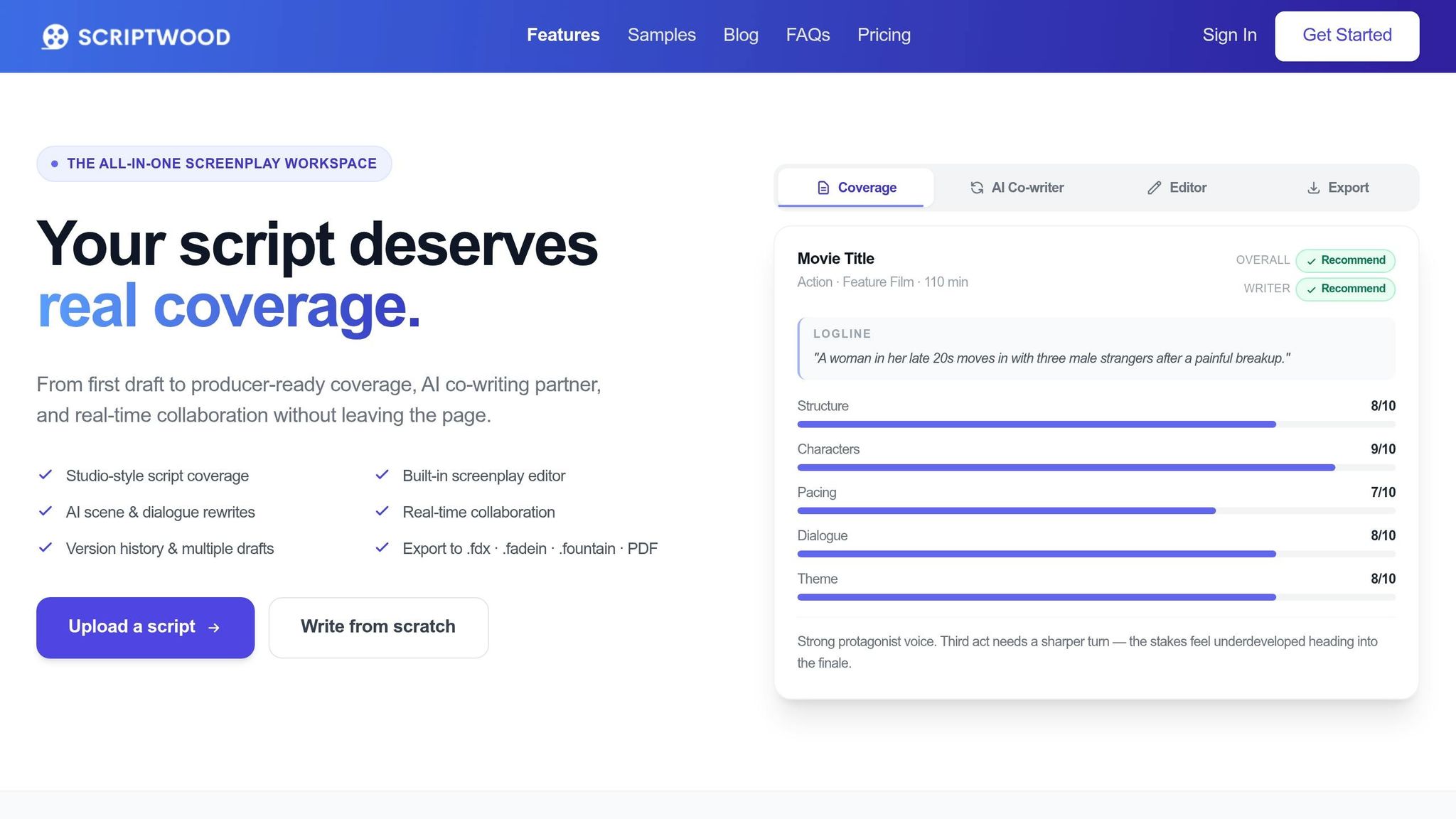
Scriptwood saves a named draft on every save, so you can label milestones like Post-Producer Notes or Director's Pass, compare any two versions, and restore earlier material when needed. Inline comments add context for future revisions. Send producers a locked PDF; use .fdx only for editable handoffs.
Use that software history alongside a written change log for team edits.
Keep a Simple Change Log and Team Editing Rules
Once version history is set up, add a plain-text log so you can scan each draft’s changes in seconds. Keep it in your project folder. That way, you have a quick record of what changed, when it changed, and why.
Record What Changed in Each Major Draft
You don’t need anything fancy here. A short document with the version number, date, author, and a one-line summary is enough to make each draft easy to track.
| Version | Date | Author | Summary |
|---|---|---|---|
| v1.0 | 08/01/2026 | Lead writer | First complete draft |
| v1.1 | 08/10/2026 | Lead writer | Tightened Act 1 opening, cut 4 pages |
| v2.0 | 08/18/2026 | Lead writer + co-writer | Act 2 restructure after table read |
| v2.1 | 08/22/2026 | Lead writer | Updated ending per producer notes |
Keep this file next to your screenplay drafts. One sentence per entry is plenty. Something like "merged the two detectives into one character" or "rewrote the pilot cold open" gives you enough context to get your bearings weeks later when you need to revisit a change.
Set Clear Collaboration and Export Rules
After you’ve logged each major draft, decide who can edit what. Pick one master-draft owner. Give producers and consultants comment-only access. Save edit access for co-writers.
That setup makes it much easier to see who changed what. It also helps protect the master draft from stray edits. Unapproved edits make accountability much harder and are the fastest way to corrupt a master draft.
"You are solely responsible for managing access to your Content, including collaborator permissions and share links." - Scriptwood Terms & Conditions
When you export drafts for producers, do it from the version-controlled draft and use a clear file name, such as ProjectTitle_v2.1_ProducerExport_08-22-2026.pdf. That small habit helps keep producer files from getting mixed up with the working script.
Conclusion: A Repeatable System That Keeps Every Draft Safe
Once your naming, storage, backups, and version history are set up, the whole process gets a lot easier. You’re not reinventing your workflow every time. You’re following the same system each time: keep one source of truth, stick to one naming format, back up every draft, and lean on version history.
When you use that system every time, rewrites stay organized and easy to recover. That setup protects the current draft and makes earlier passes simple to bring back when you need them.
Named draft history lets you restore earlier versions without overwriting the current draft.
If you keep exporting PDFs or .fdx files as part of that same routine, your script stays protected through feature rewrites, pilot rewrites, and producer exports. That’s what keeps every rewrite usable, recoverable, and ready to export.
FAQs
What’s the best way to name screenplay drafts?
The best way to manage screenplay drafts is to use an all-in-one platform like Scriptwood, which tracks versions for you automatically.
In the built-in editor, every save creates a named draft. That means you can check your revision history, bring back earlier versions, and try new ideas without losing past work. Everything stays organized and easy to find in one place, with no need to rename files by hand.
How often should I back up my script files?
Back up your script files often and on a set schedule. You’re responsible for keeping your own copies.
Scriptwood may run admin backups, but those backups aren’t guaranteed for personal use or file recovery. If data goes missing or comes back incomplete, the platform isn’t responsible for restoring it.
That’s why it’s smart to keep your own backup process in place.
What should I do if two people edit the master draft?
Use the built-in Drafts and Version History features to keep each version in place. Every save creates a named draft, which makes it easy to look back through the project’s history and roll back to an earlier version if you need to.
You can also work with co-writers through real-time collaboration tools and inline scene comments. That way, revisions stay organized, and everyone stays aligned on what changed and why.