
The Complete Guide to Exporting Screenplays in Any Format
The Complete Guide to Exporting Screenplays in Any Format
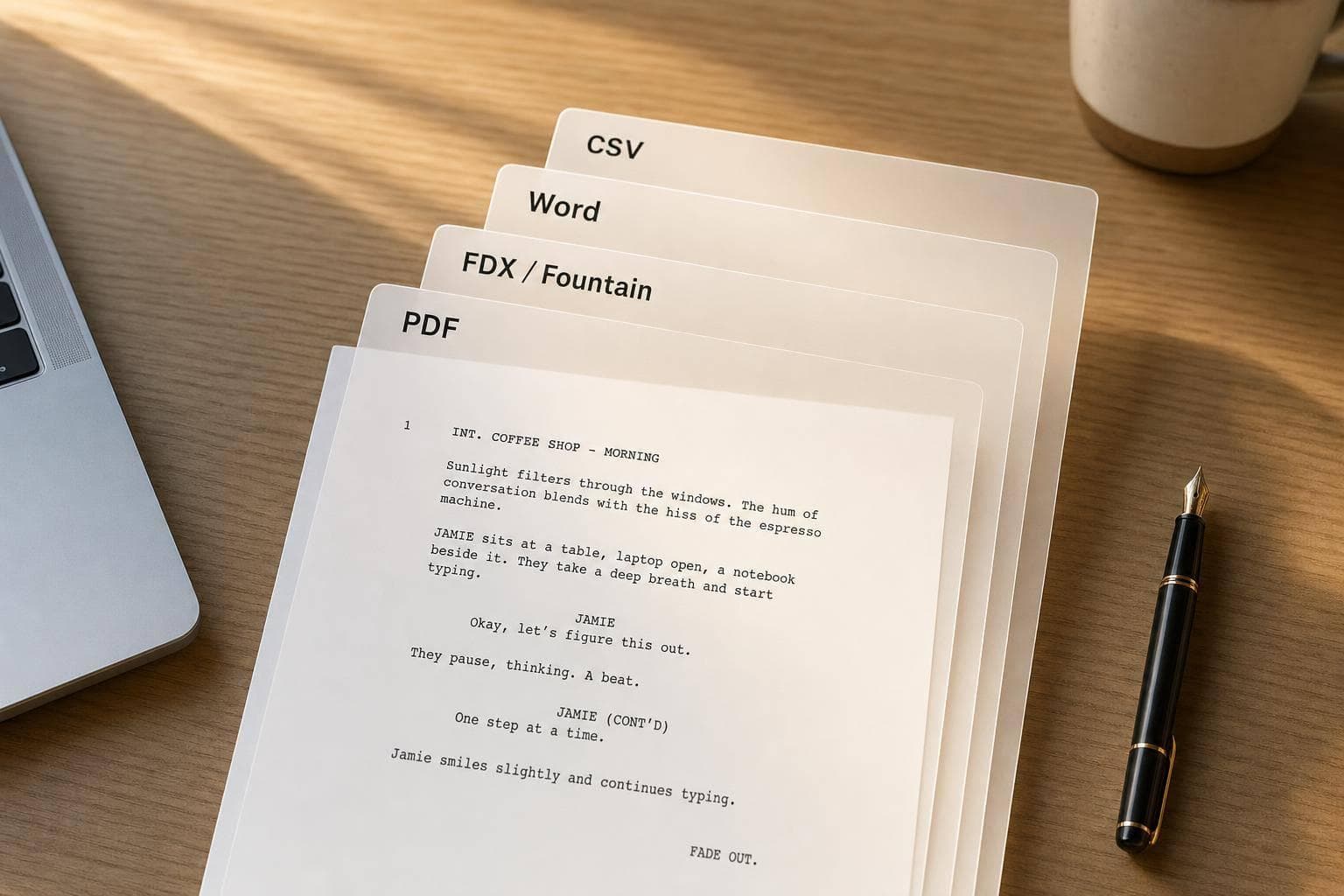
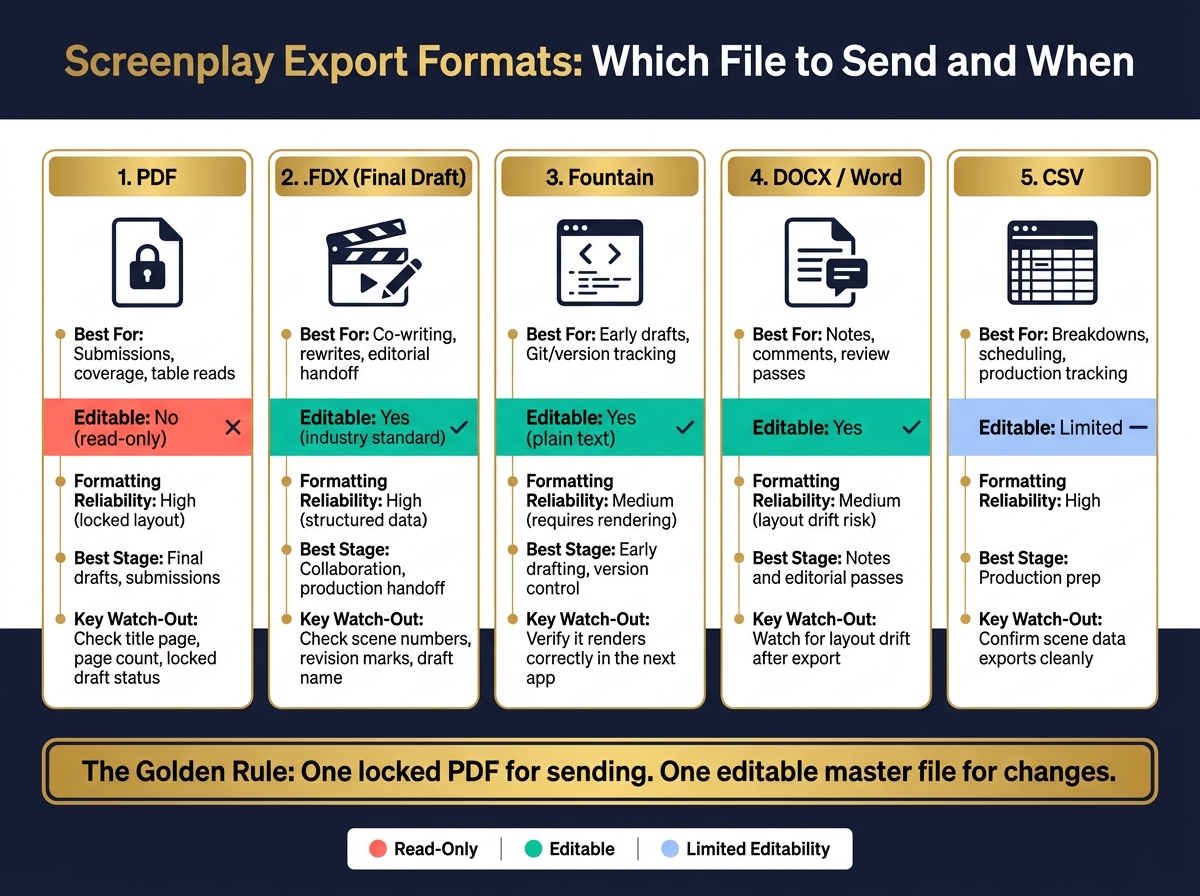
Send the right screenplay file, or you add work for the next person. In most cases, the rule is simple: PDF for reading, FDX or Fountain for editing, Word for notes, and CSV for production data.
I’d boil the whole article down to this:
- Use PDF when you want the layout locked for submissions, coverage, and table reads
- Use .fdx when another writer, editor, or production team needs to work in the script
- Use Fountain or plain text when you want text-based draft tracking
- Use Word when notes and comments matter more than screenplay layout
- Use CSV when production needs scene data for breakdowns and scheduling
A bad export can cause small but costly problems. A missing title page, broken scene numbers, or the wrong draft can slow a handoff fast. That matters because even one version mix-up can send the wrong script to a producer, reader, or team member.
Screenplay Export Formats: Which File to Send and When
Exporting Your Script With Final Draft 11
sbb-itb-609c31f
Quick Comparison
| Format | Best For | Can People Edit It? | What I’d Watch For |
|---|---|---|---|
| Submissions, coverage, table reads | No | Check title page, page count, final draft status | |
| FDX | Co-writing, rewrites, editorial handoff | Yes | Check scene numbers, revision marks, draft name |
| Fountain | Early drafts, Git/version tracking | Yes | Make sure it renders right in the next app |
| DOCX / Word | Notes, comments, review passes | Yes | Watch for layout drift |
| CSV | Breakdowns, scheduling, production prep | Limited | Make sure scene data exports cleanly |
My short takeaway: keep one locked PDF for sending and one editable master file for changes. Then, before I export, I’d check the file type, draft name, comments, permissions, and scene references.
Screenplay Export Formats and When to Use Each One
Pick the file based on who needs it next: read-only for submissions, editable for rewrites, and structured exports for production.
| Format | Primary Use | Editability | Formatting Reliability | Best Stage |
|---|---|---|---|---|
| Submissions, coverage, table reads | Low (read-only) | High (locked layout) | Final drafts, submissions | |
| .fdx | Editorial handoffs, rewrites | High (industry standard) | High (structured data) | Collaboration, production handoff |
| Fountain | Version control, lightweight drafting | High (plain text) | Medium (requires rendering) | Early drafting, version control |
| DOCX / Word | Notes, margin comments, supervised rewrites | High | Medium | Notes and editorial passes |
| CSV | Breakdowns, scheduling, production tracking | Medium | High | Production prep |
The split is pretty simple: use read-only files for delivery, editable files for rewrites, and structured exports for production work.
PDF for submissions, table reads, and locked drafts
PDF keeps the layout locked, so the other person sees the script exactly as you set it. That’s why it’s the standard for submissions, coverage, and table reads. Before you send it out, double-check the page count and title page.
If the script still needs notes or another pass, move to an editable export instead.
FDX and Fountain for collaboration and rewrites
.fdx keeps screenplay structure and metadata intact, which makes it the right file for editorial handoffs and shared rewrites.
Fountain is plain text, so it’s easy to track in version control during early drafts. The catch is that it has to be rendered in a compatible app before it reads like a properly formatted screenplay.
Use editable exports only while the script is still going through notes.
Matching Export Formats to Common Screenwriting Situations
Pick the export format based on what the next person needs to do. That's the simplest rule, and it saves a lot of back-and-forth.
Use this table to match each export to the next handoff.
| Situation | Primary Format | Working Master | Final Checks Before Sending |
|---|---|---|---|
| Submissions | .fdx or Fountain | Title page included, margins correct, locked draft confirmed | |
| Table Reads | .fdx | Clean formatting, character names consistent throughout | |
| Coverage | N/A | Title page accurate, final draft confirmed | |
| Co-writing | .fdx or Fountain | version history | Permissions set, comments enabled |
| Rewrites | .fdx | version history | Version named clearly, draft comparison reviewed |
| Production Prep | CSV or breakdown-friendly export | .fdx | Scene structure intact, breakdown-ready |
| Archival | PDF (locked) | .fdx (editable master) | Local backup saved outside cloud storage |
Submissions, producer reads, and coverage requests
For producers, managers, and coverage readers, send a PDF. The layout stays fixed, which is exactly what you want when the reader is judging the script, not working inside it.
Before exporting, check a few basic things:
- Make sure the title page is included
- Confirm the margins are correct
- Verify that you're sending the locked draft
That last step matters more than people think. Sending the wrong draft is the kind of small mistake that can turn into a big headache.
Co-writing, notes, and supervised rewrites
Collaboration needs editable files. .fdx is the right default when you're handing a script to a co-writer or working from notes that need to be applied right in the document. Fountain also works well for early-stage drafts and text-based version control.
When you share an editable file, set permissions on purpose. Decide up front who can view, who can comment, and who can edit the master. That line should be clear from the start. If not, one messy notes session can lead to accidental overwrites fast.
Table reads, archival copies, and production prep
Once the script moves from review to live reading, the rule shifts again. For a table read, send a clean PDF with no tracked changes or revision marks. Keep a locked PDF of that draft, and keep an editable .fdx master for later revisions.
Production is where structured exports matter most. Teams usually need CSV or breakdown-friendly exports for scheduling and breakdowns. Keep the .fdx as the editable master and the PDF as the locked reference.
For archival, save both. The locked PDF serves as the permanent record, while the editable master stays available for any future revisions. Also save a local backup outside cloud storage.
Exporting from Scriptwood and Other Screenwriting Tools
Once you know the right format, the next step is simple: export a clean file from the tool you used.
Using Scriptwood exports for submissions, collaboration, and version control
Scriptwood covers the full writing flow, from drafting and revisions to export. It can export scripts as PDF, Final Draft (.fdx), Highland (.fadein), and Fountain files.
For version control, Draft History creates a named version every time you save. Before you lock a submission draft, use Draft Comparison to review changes. Then restore an earlier version if needed and lock the right draft before sending it out.
If you're working with other people, Scriptwood Pro and Executive plans include real-time co-writing and inline scene comments. And if someone isn't working inside the platform, you can share feedback through a Writer Feedback PDF.
Bringing a script into Scriptwood works a bit differently. Right now, it accepts PDF uploads only, so if your file is in another format, convert it to PDF first.
The same export check applies through the rest of the workflow.
What to check when exporting from Final Draft, Celtx, WriterDuet, Fade In, and Arc Studio
Before you send anything, check the export against the handoff. A small miss here can turn into a headache later.
| Tool | Primary Export Formats | Pre-Send Check |
|---|---|---|
| Scriptwood | PDF, Final Draft (.fdx), Highland (.fadein), Fountain | Correct named version; comparison reviewed |
| Final Draft | .fdx, PDF | Scene numbers; revision marks |
| Celtx | PDF, TXT | Title page; header text |
| WriterDuet | .fdx, PDF, Fountain, DOCX | Latest sync confirmed |
| Fade In | .fdx, PDF, Fountain, .fadein | Courier Screenplay consistency |
| Arc Studio | .fdx, PDF, Fountain | Missing beats checked |
How to Avoid Formatting Loss, Version Mix-Ups, and Delivery Errors
Even a clean script can get messed up at the last step. Formatting can shift, comments can vanish, or the wrong draft can go out by accident.
And once your export format is set, the next problem is simple but painful: sending the wrong file in the right format.
A pre-send checklist for every screenplay export
Run through these checks every time before a file leaves your hands:
- Draft state confirmed - Check Draft History to make sure you're exporting the version you mean to send
- Correct file type - Match the export format to the person receiving it
- Notes handled - Decide whether comments or feedback layers should stay in or come out before export
- Permissions reviewed - If you're sending an editable file, confirm who should get view, comment, or edit access
- AI-assisted changes checked - If AI helped with the rewrite, manually check scene headers and page references before sending
Start with the checklist. If something looks off, use the table below to spot the problem fast.
| Risk | Common Cause | Signs | Fix |
|---|---|---|---|
| Broken formatting | Converting between tools that don't play well together | Margins, dialogue alignment, or font shifts after export | Export straight to PDF or FDX from the source editor |
| Broken scene numbers | AI-assisted rewrites or re-pagination | Scene headers or page references don't match the draft | Manually verify scene headers and page references before sending |
| Missing comments | Export settings leave out comments or feedback | Comments or feedback layers are gone from the file | Check export settings before sending |
| Version confusion | Multiple unnamed saves or copies | The exported file doesn't match the draft you meant to send | Use named drafts and Draft History |
Keep a locked PDF and an editable master file
Keep a locked PDF for delivery and an editable master for revisions. It’s a simple split, but it saves headaches: one file goes out, and one file stays safe for changes.
FAQs
Which screenplay format should I send by default?
By default, send a PDF. It’s the standard format for submissions, and it keeps your formatting consistent and professional no matter what software the other person uses.
If you’re working with collaborators who need editable screenplay files, you can also export formats like Final Draft (.fdx), Fountain, or Fade In, depending on your plan.
When should I export a screenplay as FDX instead of PDF?
Export as FDX when you need to keep editing the script or work with others in a pro screenwriting setup.
Use PDF for finished, read-only drafts, like when you're sharing with producers or saving a final copy. Use FDX when other people need to open the script, keep the formatting intact, and make edits without a hassle.
How can I avoid sending the wrong screenplay draft?
Use the built-in version history feature to name and save each draft automatically every time you save your work. That gives you a clear record of changes, so you can look back at earlier drafts and restore a past version if you need to.
If you use AI help at any point, check the output yourself before you submit it. The final content is still your responsibility, so make sure it’s accurate and fits what you need to deliver.