
Slow Feedback Killing Your Script? Here Are 5 Fixes

Slow Feedback Killing Your Script? Here Are 5 Fixes
If notes take a week or more, your rewrite pace drops fast. I’d fix that with five simple moves: get AI coverage first, set 3-to-5-day deadlines, ask for scene-level notes, compare drafts before resending, and send the right file type to each reader.
Here’s the short version:
- Start with AI coverage so I can get first-pass notes in minutes, not days
- Set a 3-to-5-day deadline inside the shared draft, not in email
- Ask one question about one scene instead of asking for whole-script reactions
- Check draft changes first so readers only look at what’s new
- Send the right export for the reader, like PDF for review or
.fdxfor edits
That matters because slow notes don’t just waste time. They can blur my read on structure, pacing, dialogue, and character work. And when feedback is vague, rewrite time can stretch from hours to days.
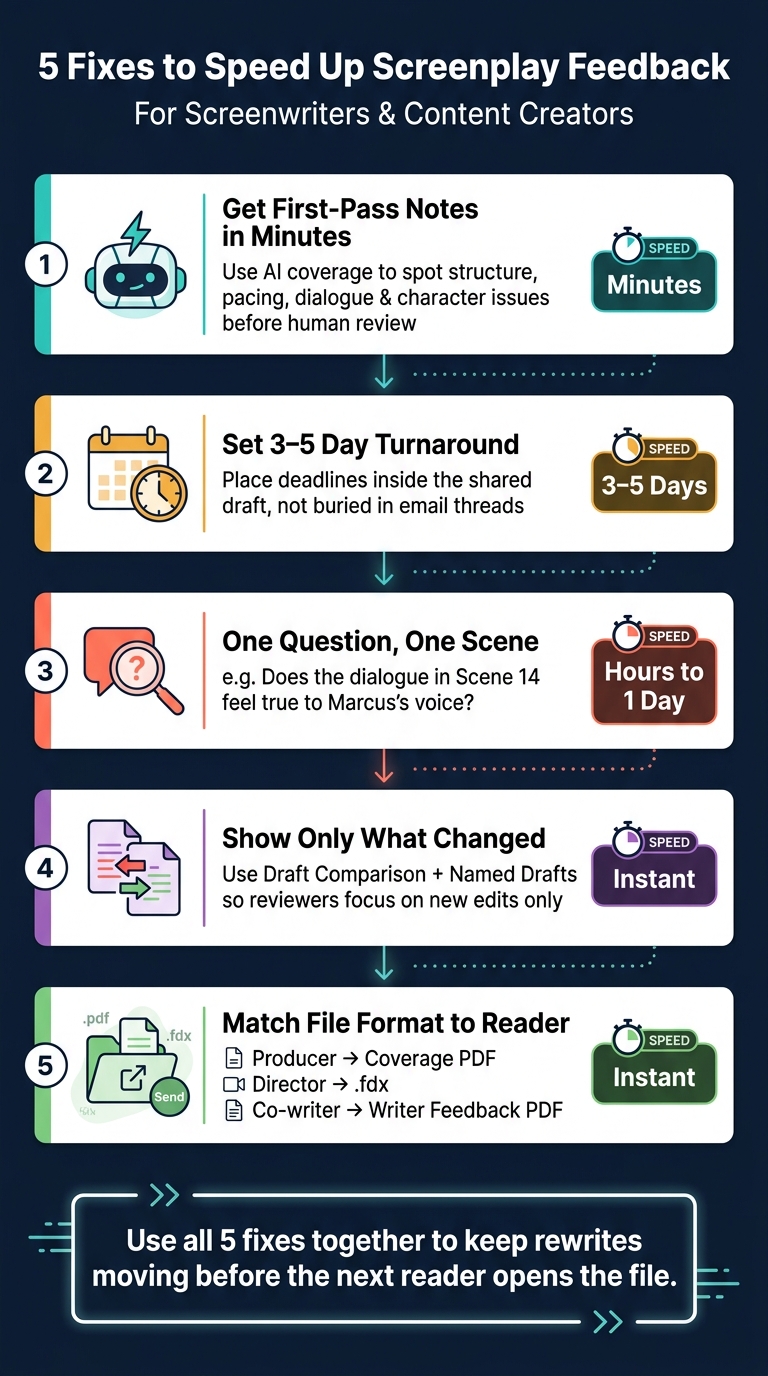
5 Fixes to Speed Up Screenplay Feedback
I got 13 pages of Screenplay feedback with this ChatGPT prompt
sbb-itb-609c31f
Quick comparison
| Fix | Best use | Turnaround | Main goal |
|---|---|---|---|
| AI coverage | First-pass notes | Minutes | Spot story issues early |
| Shared deadlines | Team reviews | 3–5 days | Keep notes on schedule |
| Scene-specific asks | One weak scene or beat | Hours to 1 day | Get usable page notes |
| Draft comparison | Before resending pages | Instant | Show what changed |
| Targeted exports | Sending to each reader | Instant | Cut file-format friction |
I’d use this workflow to keep the script moving while the draft is still easy to revise.
Why Slow Feedback Hurts Your Screenplay More Than You Realize
When you finish a draft, you're still close to the story. You can still see the structure. The character choices still track. And the next rewrite often feels obvious. But the longer you wait for feedback, the harder it becomes to read that draft with clear eyes. That delay can slow rewrites and make the draft tougher to judge.
Then there's the workflow mess. You write in one tool, export a PDF, email it out, and then hunt through comments across different files. That breaks your focus and adds yet another gap between the draft and the fix. As a result, structured, scene-level notes are much easier to use right away.
Scriptwood's AI coverage delivers notes in minutes, not weeks. You get feedback on structure, pacing, character development, dialogue, and marketability as soon as you need it. That's why the first fix starts with AI coverage.
Keep the draft moving by staying in one workspace, so revisions stay on track while the script is still fresh.
1. Use Scriptwood AI Coverage for First-Pass Notes
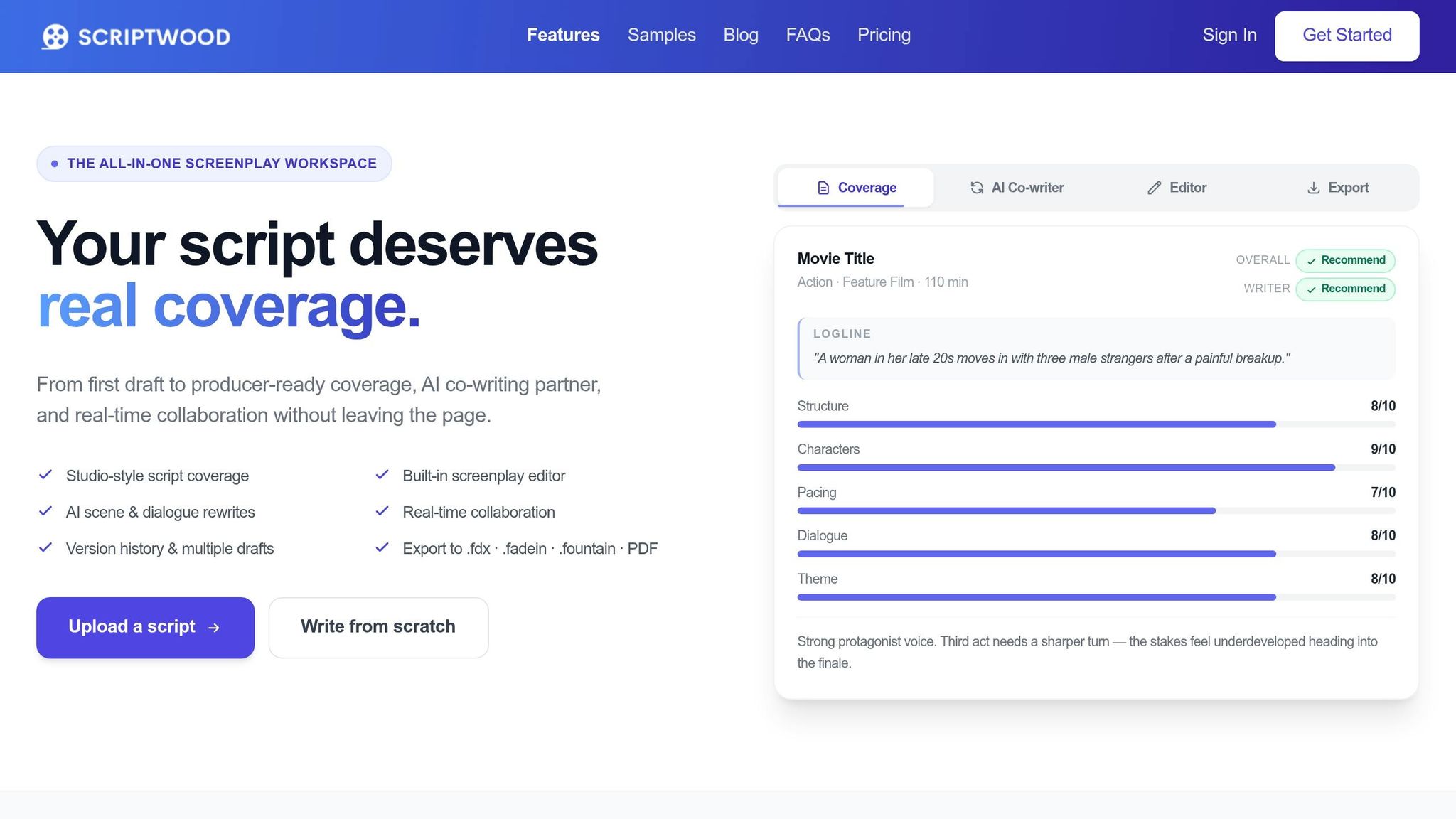
Scriptwood's AI coverage gives you first-pass notes in minutes. It looks at structure, characters, pacing, dialogue, and marketability, so you can spot what needs work before you send the draft to anyone else. That means you have something concrete to revise right away instead of asking for feedback too early.
It also helps you catch story problems while the draft is still fresh. And that matters. Revising with momentum feels very different from coming back later when the energy has faded.
If coverage points to a pacing problem, use AI Rewrite & Chat to test a scene fix or ask follow-up questions on the spot. Then, after that first pass, send out a cleaner draft so human readers can spend their time on bigger-picture notes. That leads to faster, more useful feedback from co-writers and producers.
2. Set 3-to-5-Day Feedback Deadlines in a Shared Workspace
Once the first round of notes is in, give your human readers a firm deadline. Loose timelines drain momentum fast. When readers, collaborators, or producers get a draft, set a 3-to-5-day turnaround.
Put that deadline inside the shared script, not in a buried email thread. Then keep all notes in that same draft. Bring co-writers and readers into the script so they can leave inline comments on the exact scene.
Permission controls matter here too. Set collaborators to comment-only so they can leave notes without changing the draft. That way, everyone has one place to respond, and each note stays tied to the right page.
When notes come in on time, ask for scene-level feedback next. It keeps readers locked in on the pages instead of the clock.
3. Ask for Scene-Specific Notes Instead of Whole-Script Reactions
Skip the vague, open-ended ask. Don’t say, “What do you think?” Ask one question about one scene instead.
A broad question usually leads to broad replies. And broad replies don’t tell you what to fix on the page. When the note is narrow, the rewrite tends to move faster too.
Point readers to the exact scene or beat you want them to look at. For example: “Does the dialogue in Scene 14 feel true to Marcus's voice?” That kind of prompt gives people a clear target. It also keeps the feedback tied to the writing, not to a fuzzy overall impression.
Inline comments help here. They keep notes attached to the scene itself, so feedback doesn’t drift into vague reactions. Everything stays grounded in the page.
There’s another upside: a tighter ask often gets readers back to you while the draft is still fresh. That focus can speed replies and cut review time dramatically.
After the notes come in, compare versions before you send pages back out.
4. Compare Drafts Before You Resend Pages
Compare each draft before you resend pages so feedback stays tied to what actually changed.
Scriptwood's Draft Comparison tool shows the differences between versions. Use it with Named Drafts so every revision is easy to spot at a glance. For example, Draft_V2_Dialogue_Polish makes it clear what pass you're looking at.
If a change doesn't work, Draft History lets you pull up an earlier version and restore it without losing other edits. That's useful when you're trying things out, backtracking, and sending only the pages that still need notes.
Once the revision history is easy to follow, send a version built for the next reader.
5. Export Targeted Review Versions for Producers and Collaborators
Once your draft is clean and your changes are checked, how you send it matters almost as much as what’s on the page.
Use the wrong file type, and you create friction before anyone even starts reading. The fix is simple: match the export to the person getting it. Scriptwood lets you export in PDF, .fdx, .fadein, or Fountain, so each reader can get the format that fits their workflow. The table below shows what to send on the first pass.
For producers, the best first package is a clean draft paired with a Coverage PDF. That gives them a quick AI report on structure, pacing, character, dialogue, and marketability.
For co-writers and script consultants, a Writer Feedback PDF keeps notes separate from the draft, which makes review a lot easier. And if a director or another collaborator needs to make hands-on technical edits, send a .fdx or .fadein file so they can open it right in their production workflow.
| Reader | Best Export | Best Use |
|---|---|---|
| Producer | Coverage PDF | AI report for a fast first read on structure, pacing, and marketability |
| Director | .fdx or .fadein |
Format-ready script for production workflows |
| Co-writer | .fdx or Writer Feedback PDF |
Direct editing or consolidated notes alongside the draft |
| Script Consultant | Writer Feedback PDF | AI-generated notes on dialogue and story |
Quick Reference Table: Faster Feedback Workflows for Screenwriters
Use this table to match each fix to the stage your script is in now.
| Fix | Best For | Speed | What It Improves | When to Use It |
|---|---|---|---|---|
| AI Coverage | Early draft diagnosis | Minutes | Structure, pacing, and marketability | After finishing a rough first draft, before involving human readers |
| Shared Workspace Deadlines | Co-writing and team alignment | 3–5 days | Accountability and real-time collaboration | During active mid-stage rewrites with a writing partner or consultant |
| Scene-Specific Notes | Dialogue and sequence polish | Hours to 1 day | Focus and reviewer efficiency | When one specific scene feels off but the rest of the script is solid |
| Draft Comparison | Revision tracking | Instant | Clarity on what actually changed | Before resending pages so collaborators only review new edits |
| Targeted Exports | Professional submissions | Instant | Presentation and readability | When sending to producers, agents, or for festival entries |
Conclusion
Waiting weeks for feedback can kill rewrite momentum. By the time notes show up, they're often harder to use, and the script ends up sitting there instead of getting better.
Use these five fixes together, and you can keep the rewrite moving before the next reader even opens the file. That feedback loop starts with your next draft.
This is the workflow Scriptwood is built to support.
If your script is stuck in an inbox, this workflow can help get it moving. Start with a first-pass coverage run on Scriptwood.
FAQs
When should I use AI coverage versus human feedback?
Use AI coverage when you need fast, first-pass notes while writing. It works well for back-and-forth feedback on structure, pacing, character development, and dialogue, especially in early drafts when speed matters and you want to keep moving.
Use human feedback when you need nuanced critique and final creative calls. AI is at its best as a diagnostic tool that helps you sharpen your script before you bring it to a person with deeper, specialized judgment.
What kind of scene-level question gets the best notes?
The best scene-level questions zoom in on a specific part of the scene, such as character motivation, structure, or dialogue. That’s what leads to feedback you can actually use. Broad questions often bring broad answers. Targeted questions tend to produce clearer notes and easier next steps.
AI tools can also help you check whether a scene lands the emotional beat or plot point you meant to hit. Instead of getting stuck with vague comments, you can use that feedback to spot what’s working, what feels off, and where to revise.
Which file type should I send to each reader?
Send your script as a PDF.
Scriptwood currently supports PDF uploads for sharing and reading. Both coverage and scripts also export as PDF.